Enterprise verification
Verify an enterprise, resolve failed checks, understand unlocked capabilities, and change verification types.
Identity verification belongs to your account. Complete it before creating API Keys or adding funds to use services. There are personal and enterprise types. Only enterprise verification allows you to create organizations and enable enterprise sign-in.
| Capability | Unverified | Personal verification | Enterprise verification |
|---|---|---|---|
| Create personal API Keys | ✗ | ✓ | ✓ |
| Add funds and use platform services | ✗ | ✓ | ✓ |
| Create organizations for collaboration and consolidated billing | ✗ | ✗ | ✓ |
| Configure enterprise sign-in (Feishu / DingTalk / WeCom) | ✗ | ✗ | ✓ |
Screenshots use fictional demonstration data. To fund an organization by bank transfer after verification, continue with enterprise bank transfers.
What to prepare
Prepare four details from the business license. You do not need to upload business-license or identity-card photos.
| Field | Requirements |
|---|---|
| Enterprise name | Exactly as registered, including parentheses and spaces |
| Unified Social Credit Code | The 18-character code on the business license |
| Legal representative name | The current legal representative on the business license |
| Legal representative identity card number | The representative’s 18-character identity card number |
Verification steps
Open identity verification
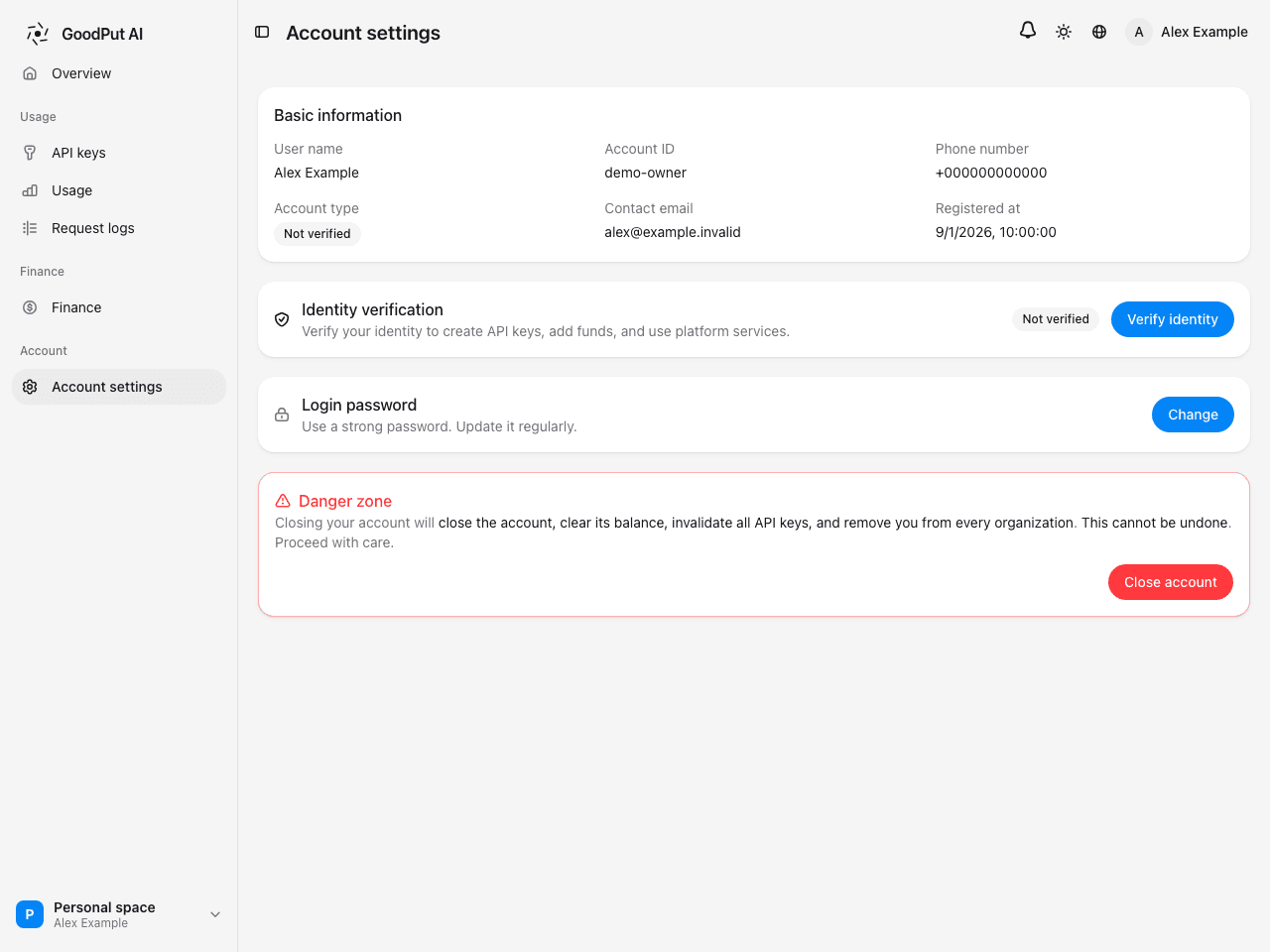
In your personal space, select Account Settings in the sidebar. Find Identity Verification and select Verify Identity.
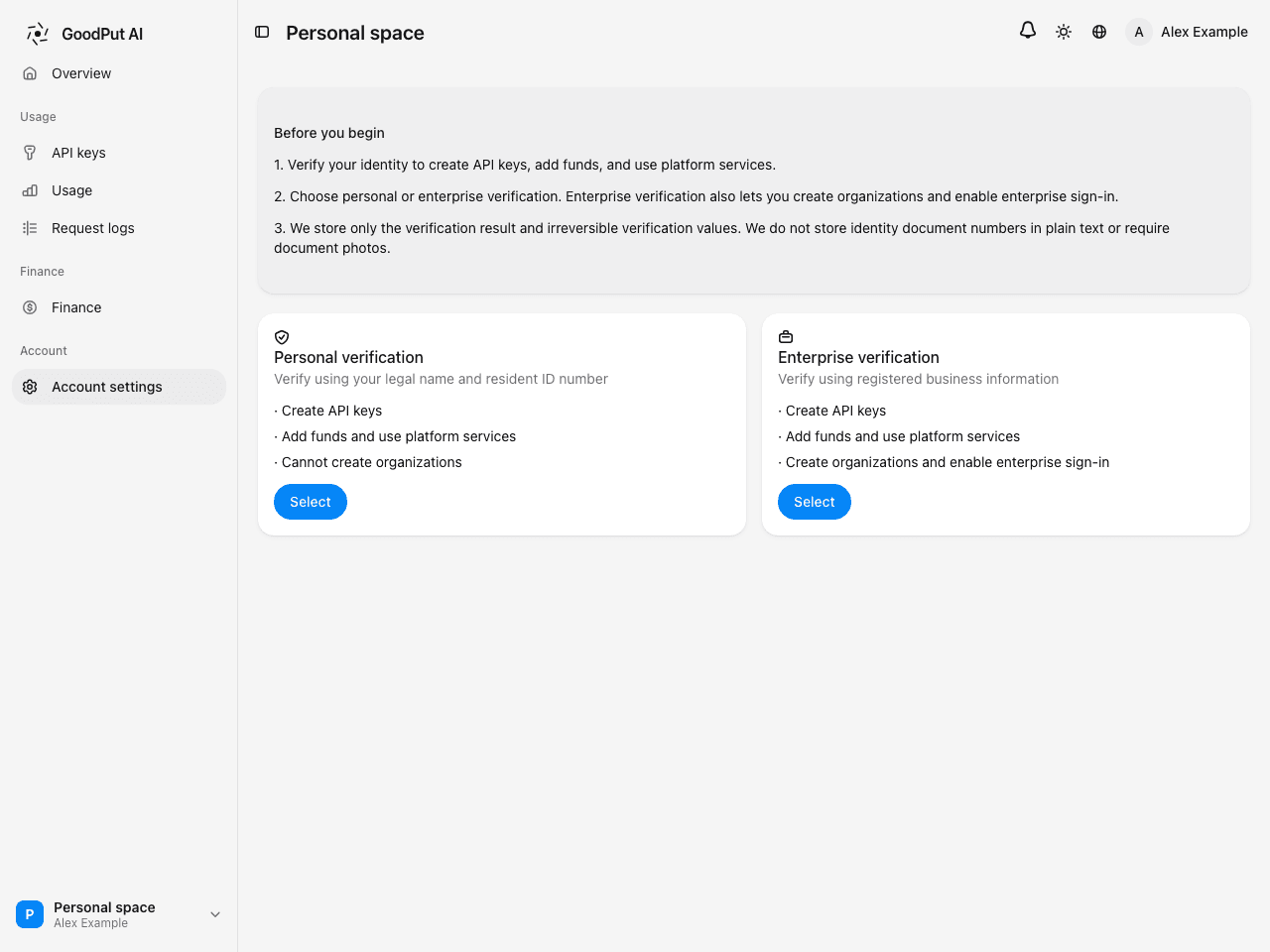
Select enterprise verification
The page lists both types and the capabilities they unlock. Choose Enterprise Verification.
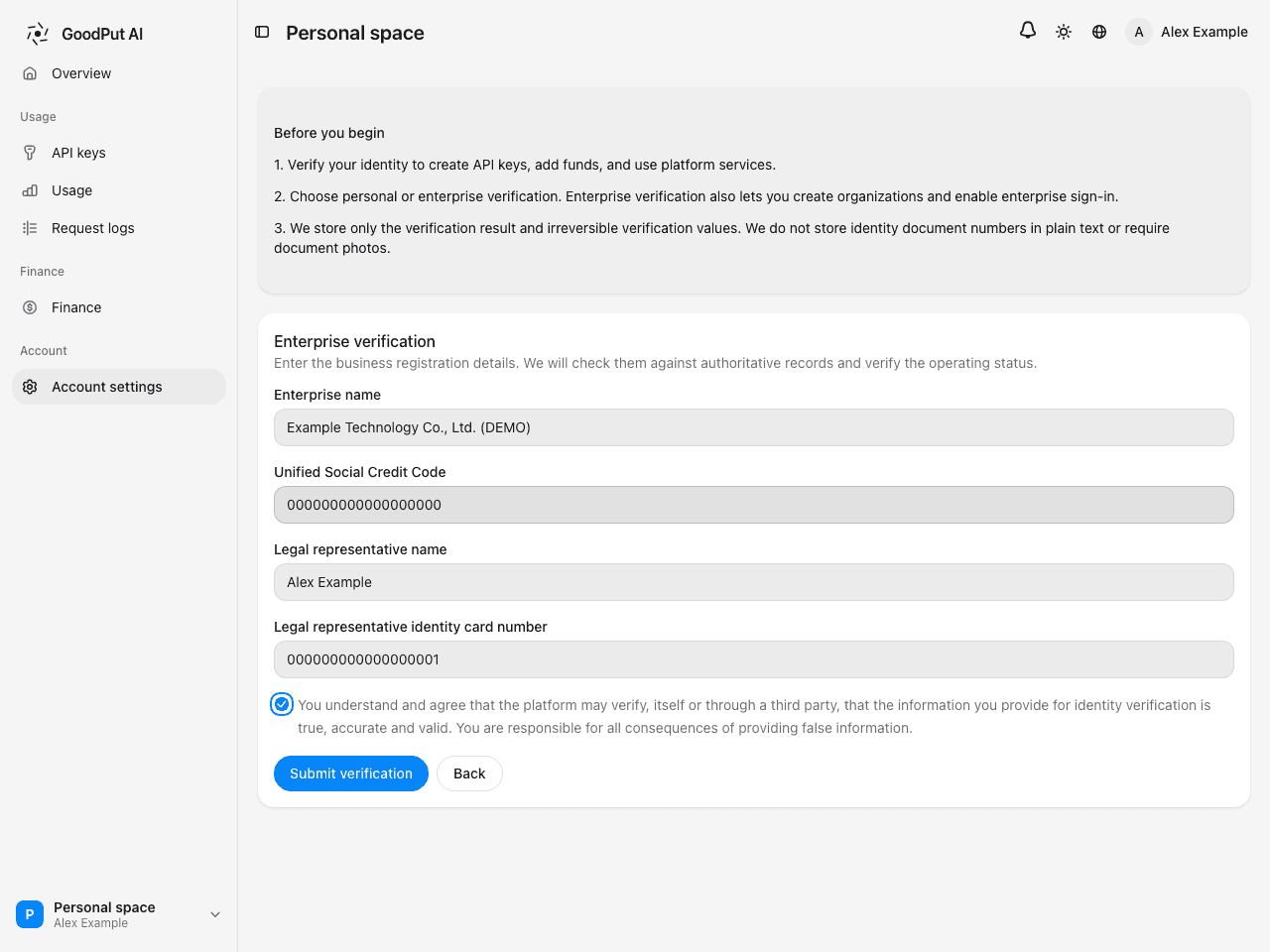
Enter enterprise details and submit
Enter the four details from the business license, authorize verification, and select Submit Verification. The checkbox text is the authorization itself: you agree that the platform may verify, itself or through a third party, that the information is true, accurate, and valid.
In some cases, you must also complete a human-verification challenge before submission.
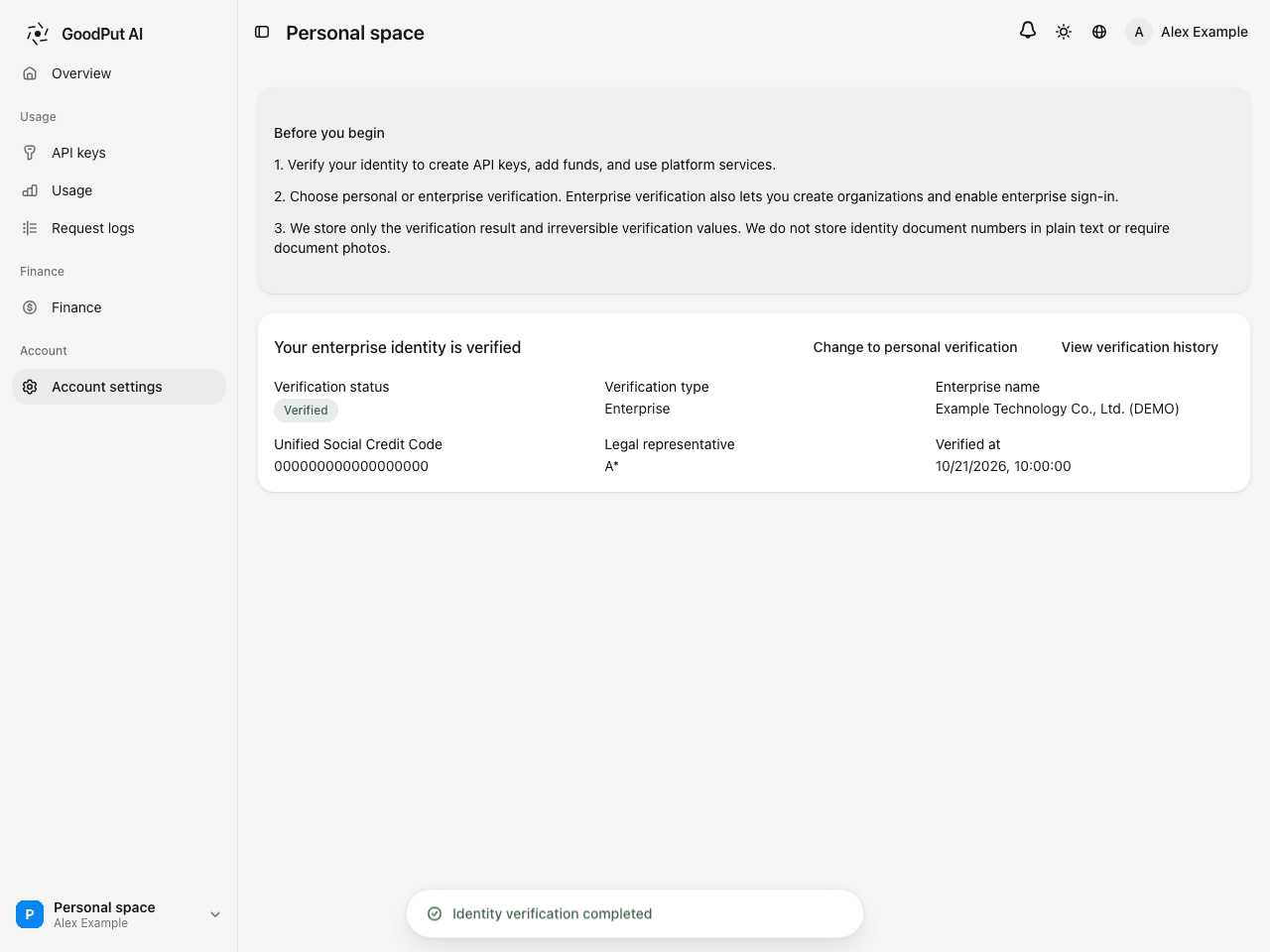
Receive the result immediately
The check returns its result on submission. On success, the page shows “Your enterprise identity is verified”, together with the enterprise name, Unified Social Credit Code, masked legal representative name, and verification time.
Verification rules and failures
Both conditions must hold: all four details must exactly match business-registration records, and the enterprise must be operating normally. Verification fails if either condition is unmet.
A failure message appears at the top of the page. Your entries are preserved so you can correct them and resubmit:
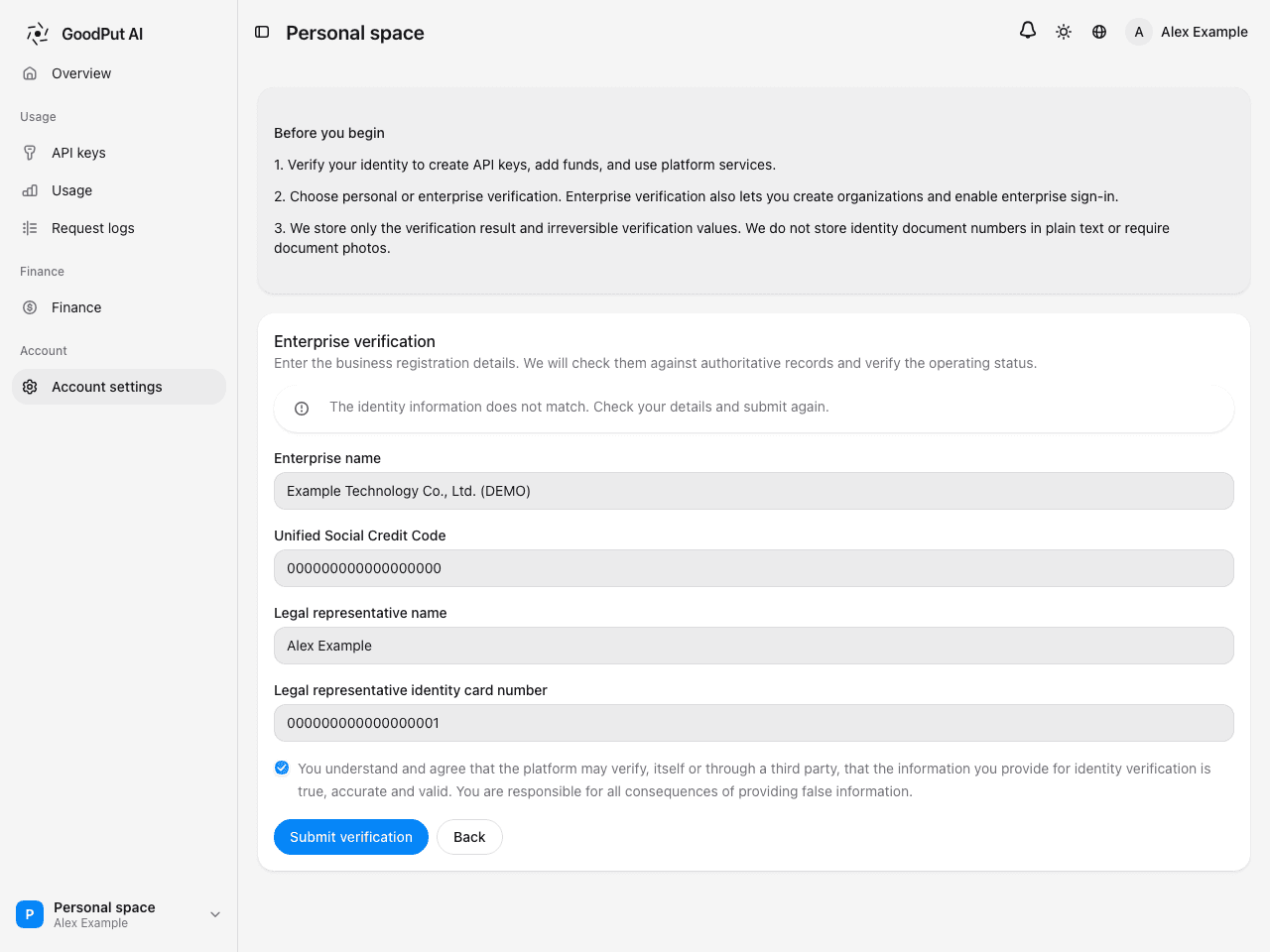
| Message | Meaning | Action |
|---|---|---|
| Identity information does not match | At least one of the four details differs from registration records | Compare each field with the business license, correct it, and resubmit |
| Identity information was not found | The authoritative data source has no record for this enterprise | Repeated submissions will not change the result; check the details or contact support |
| Enterprise business status is unavailable | The enterprise is deregistered, revoked, relocated out, or suspended | This enterprise cannot complete verification |
| Too many submissions | The account has reached its submission limit of 5 attempts per hour | Wait one hour before retrying |
The mismatch message does not identify which of the four details is wrong, so check each one. Common causes are a name that differs from the license, including parentheses or suffixes; a former legal representative; or confusing characters in the credit code, such as 0/O or 1/I.
How verification information is stored
- Enterprise name and Unified Social Credit Code are public business-registration information and are stored and displayed in plain text.
- Legal representative name is stored only in masked form, such as “Z*”.
- Legal representative identity card number is used only for this check and is not stored.
- For personal verification, the identity card number is also not stored in plain text. Only a masked value and an irreversible verification value are retained.
- No document photos are required at any stage.
After verification
- You can create API Keys, add funds, and create organizations for collaboration, consolidated billing, and enterprise sign-in.
- When you create an organization, the platform records your then-current enterprise name and credit code as that organization’s enterprise identity for invoices and bank transfers. Later changes to your account verification do not change existing organizations.
- Organization members do not each need verification to use team keys: the organization’s enterprise verification covers them. Members need their own verification only to create personal keys or fund their personal spaces.
- Managed accounts created through enterprise sign-in are covered by their organization. Account Settings shows that the organization provides verification; these users do not need, and cannot perform, self-service identity verification.
Change verification type
Start a change on the Identity Verification page:
- Personal → enterprise: allowed at any time. Submit enterprise details using the steps above.
- Enterprise → personal, or changing to a different enterprise: blocked while you own organizations that are not closed. Change to Personal Verification is disabled; its tooltip explains that you must first transfer or dissolve your organizations.
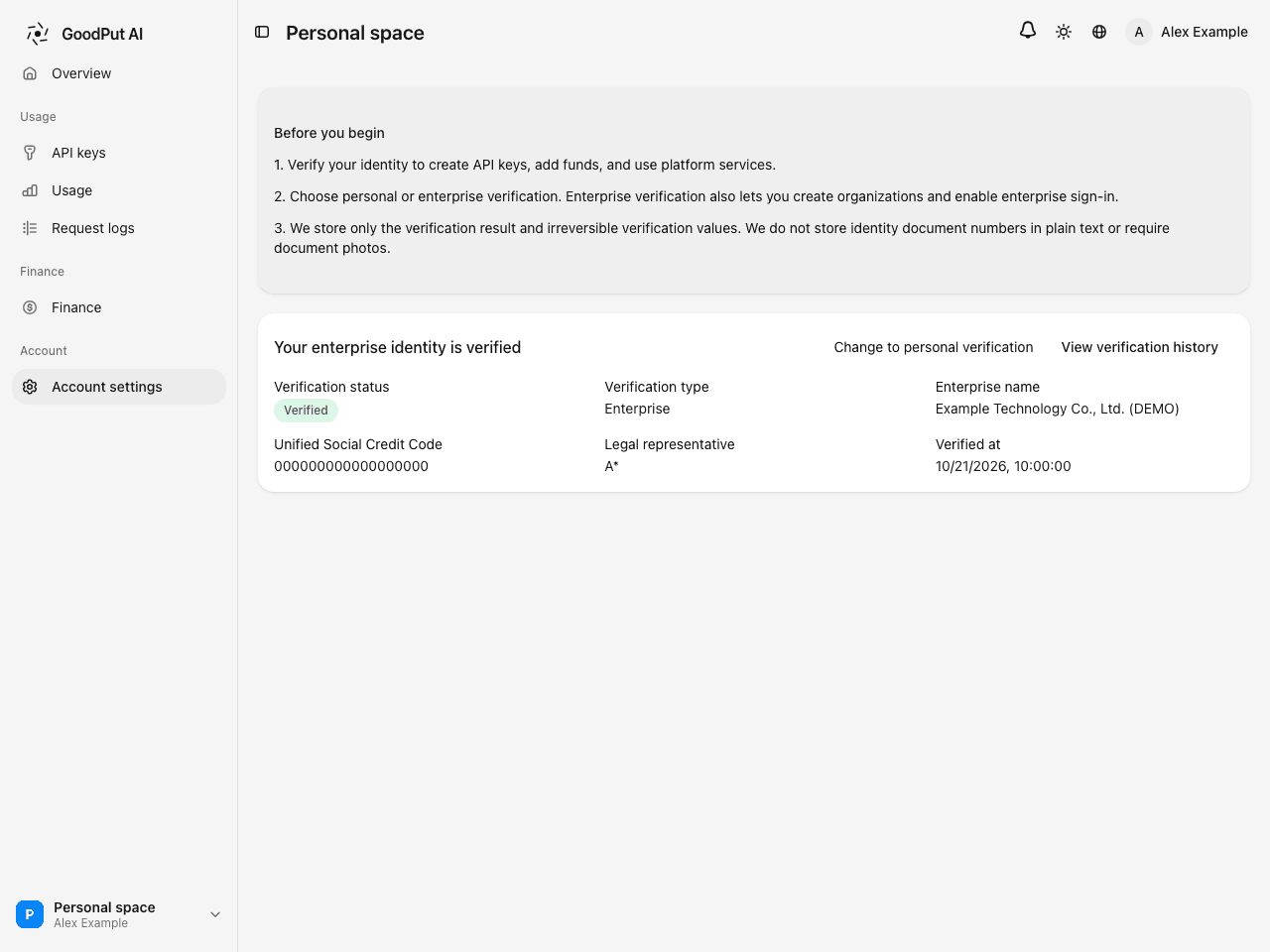
The organization’s enterprise-identity snapshot, enterprise sign-in, invoicing, and bank collection depend on that verification. Changing the identity would invalidate those foundations, so transfer or dissolve your organizations first.
Resubmitting verification for the same enterprise, for example after a legal representative changes, is not subject to this restriction.
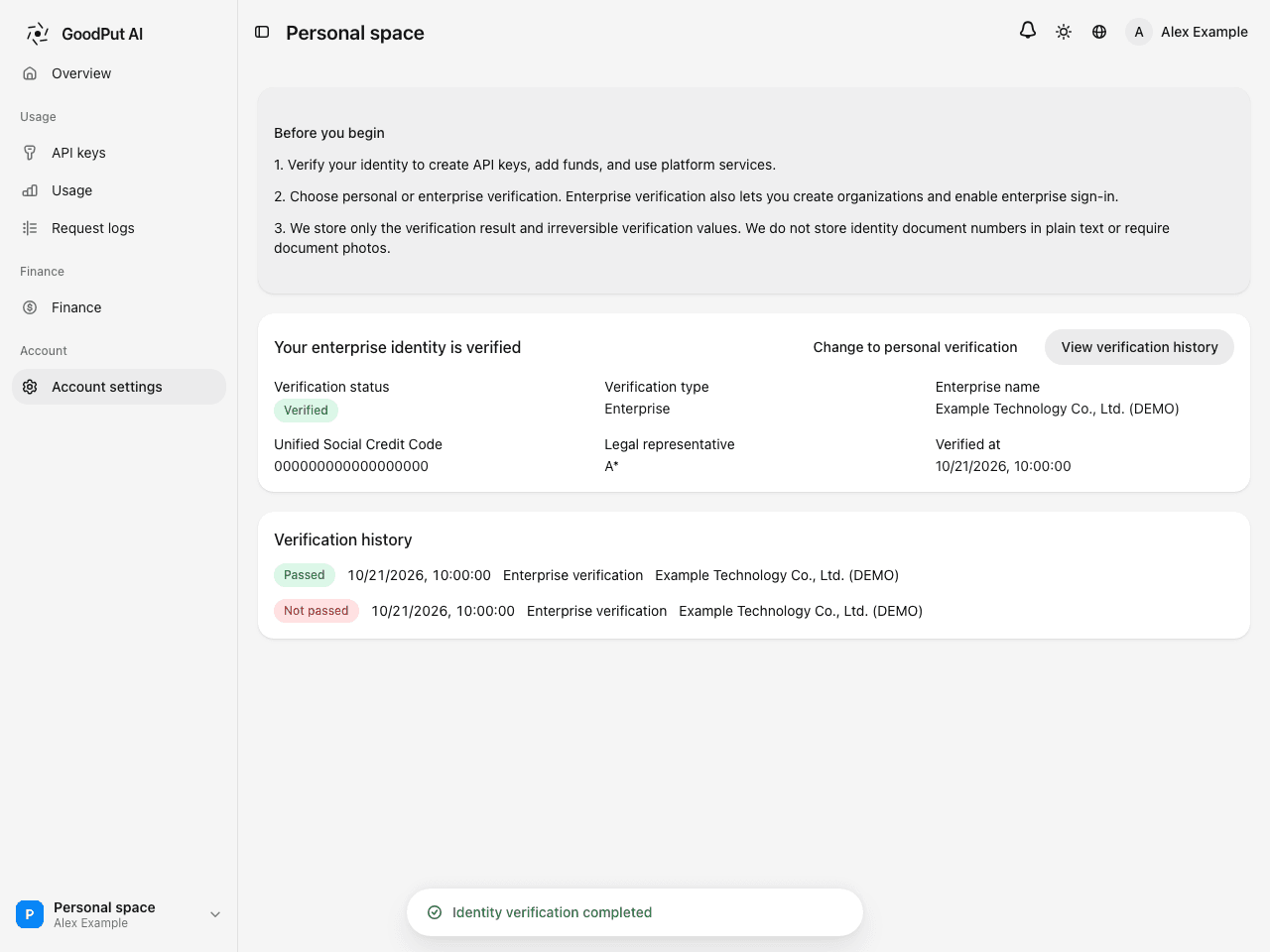
Verification history
Select View Verification History to see previous submissions, including unsuccessful ones:
FAQ
Can I create an organization after personal verification?
No. Enterprise verification is required. Select Change to Enterprise Verification on the verification page and submit the enterprise details.
Is verification charged?
No. Identity verification is free for you.
The document is already linked to another account
Personal verification allows one account per person: the same identity card can verify only one account. Sign in with the original account or contact support.
Do organization members need individual verification?
No verification is required to use team keys. Members need it only to create their own personal keys or add funds to their personal space.
What if enterprise details change?
Resubmit enterprise verification after a name or legal representative change. Existing organizations retain their identity as recorded at creation; contact support if it also needs updating.