Organization and team management
Create teams, invite members, assign roles and budgets, manage keys, and review access.
This guide is for organization owners and administrators managing an existing organization. For concepts and boundaries, see organizations and teams. If you have not created an organization, complete enterprise verification first.
Screenshots use fictional demonstration data. Team URLs use /org/{orgSlug}/teams/....
Understand the three levels
| Level | Purpose | Managed by |
|---|---|---|
| Organization | Billing and administration boundary with one balance, bills, members, and enterprise sign-in | Owner / administrators |
| Team | Usage and key grouping with separate members, keys, and optional monthly caps | Organization administrators + team administrators |
| Member | A person in the organization who may join several teams and own keys within them | The member + administrators |
The organization balance is the only pool of funds. Team caps and member budgets are spending limits against that pool, not separate balances that each team or member recharges.
Organization menus
The sidebar has three groups. The Organization group is visible only to owners and administrators:
| Group | Menus | Scope |
|---|---|---|
| Personal | Personal Keys / Personal Usage / Request Logs / Personal Quota | Your own resources within the current team |
| Team | Team Keys / Team Usage / Request Logs / Team Settings | Organization or team administrators |
| Organization | Organization Usage / Finance / Team Management / Organization Members / Enterprise Login / Organization Settings | Owners / administrators only |
The team switcher appears at the top, only when there is more than one team. The account and organization switcher is at the lower left.
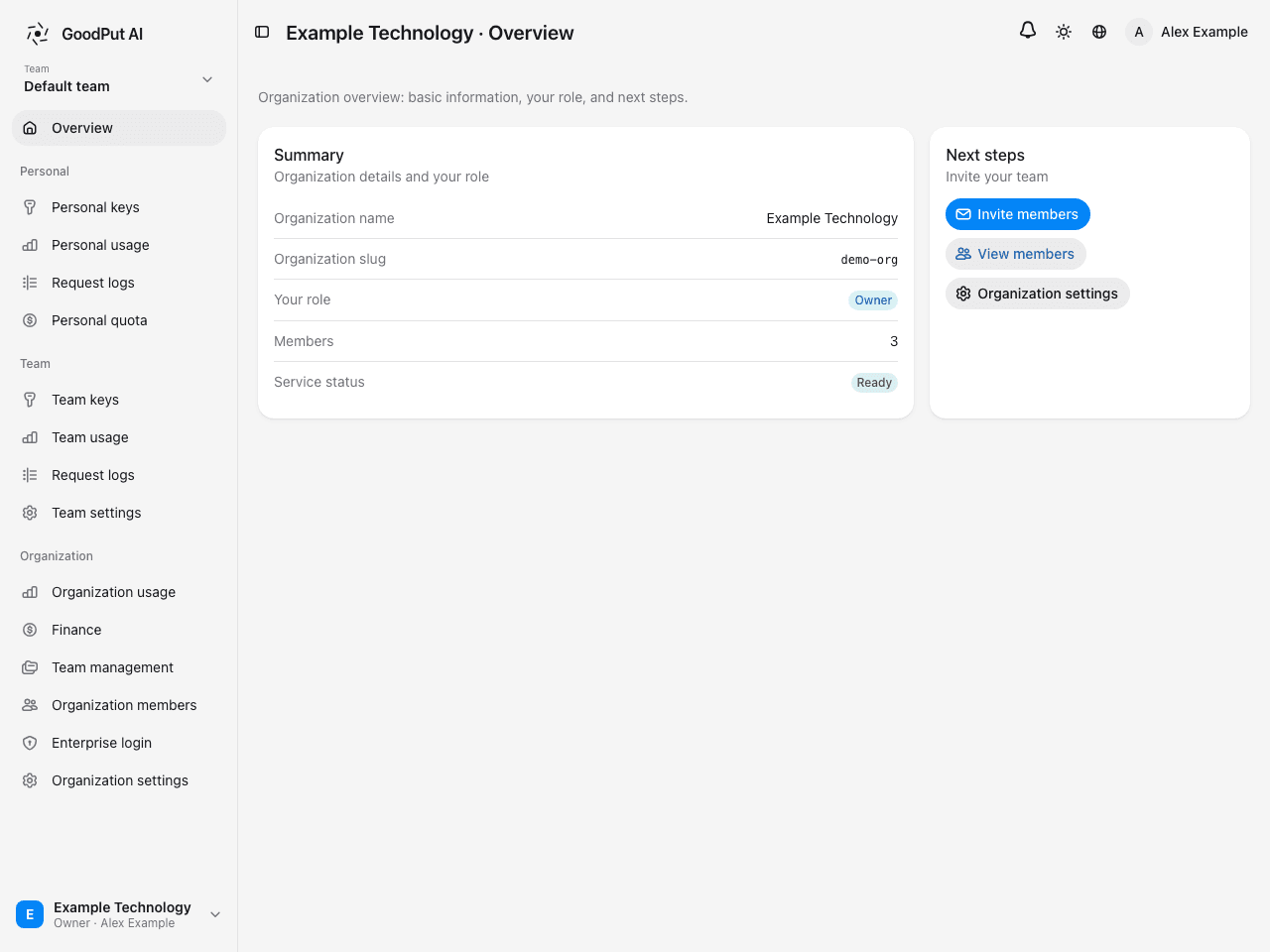
Invitations are not a sidebar menu item. Use Invite Members on Overview, or visit /org/{orgSlug}/invitations directly.
Team management
Create a team
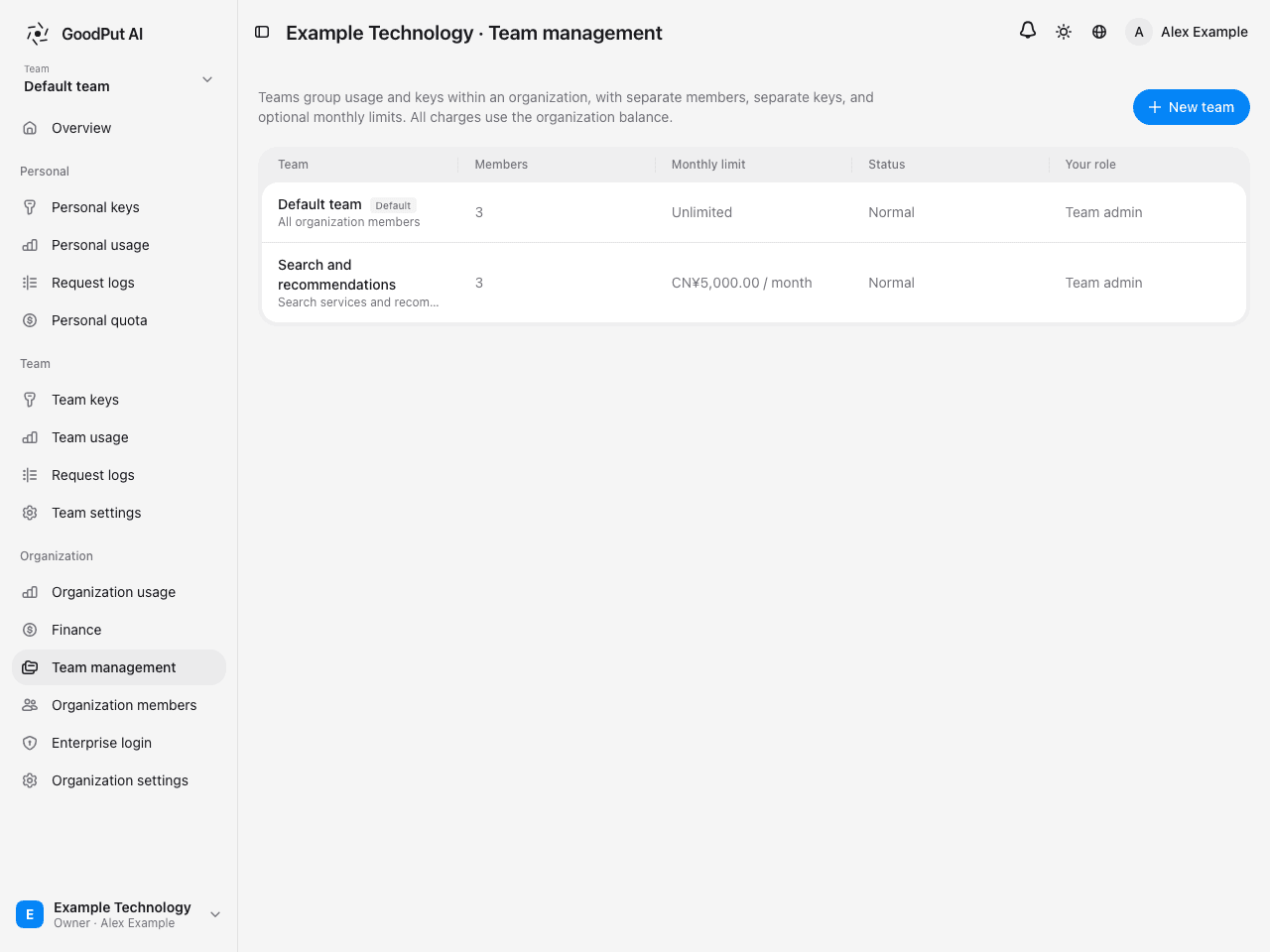
Open Team Management and select New Team at the upper right.
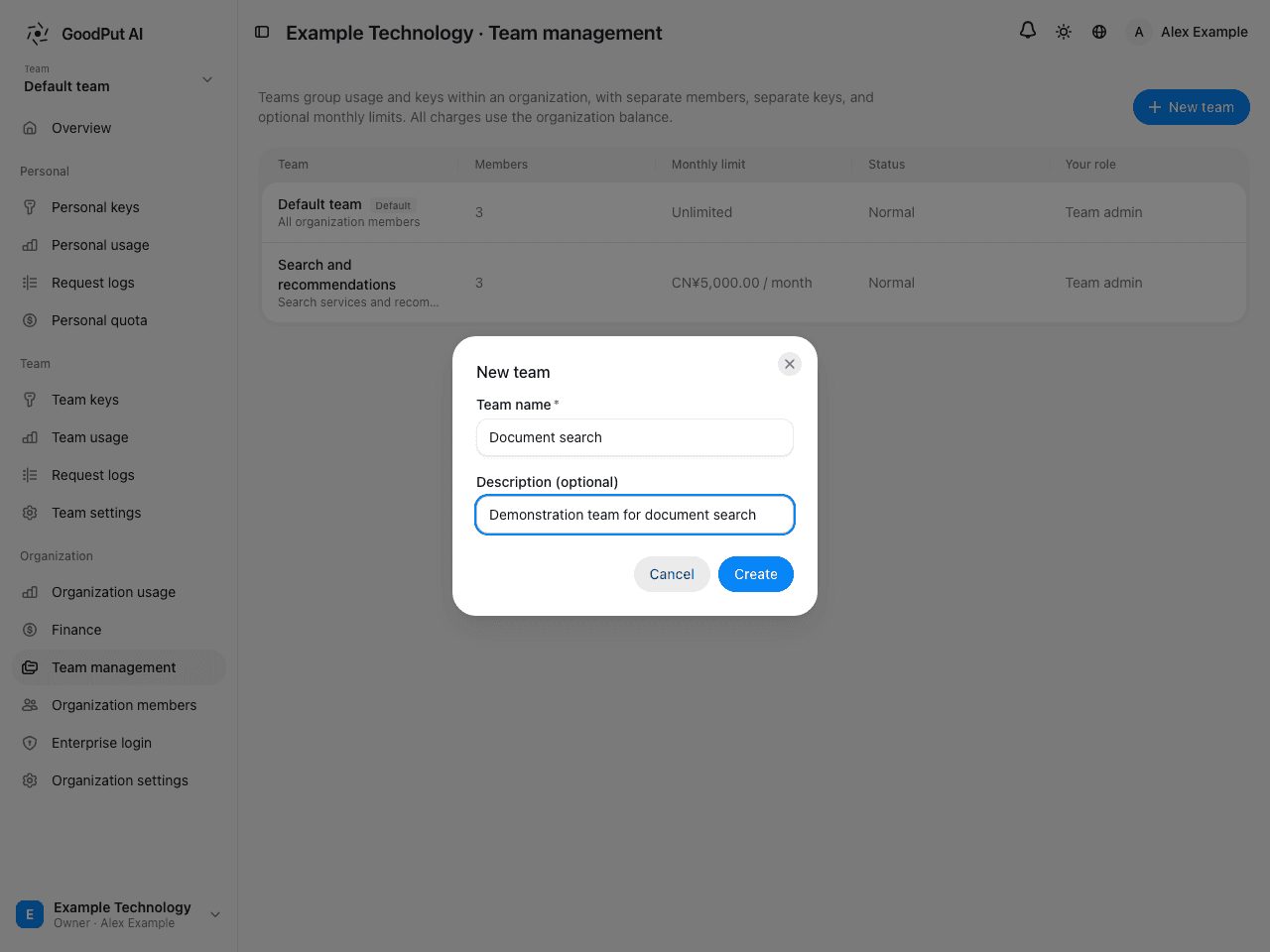
Enter a team name and optional description.
Each row shows member count, monthly cap, status, and your team role.
- Every organization starts with a default team. Its membership automatically follows organization membership; members cannot be added or removed in team settings. It has no separate cap and follows the organization’s available funds.
- “Initializing” means service provisioning is in progress, usually for a few seconds.
- Only owners and administrators see the create-team entry.
Team settings
Change the name and description, manage members and caps, or archive the team in Team Settings.
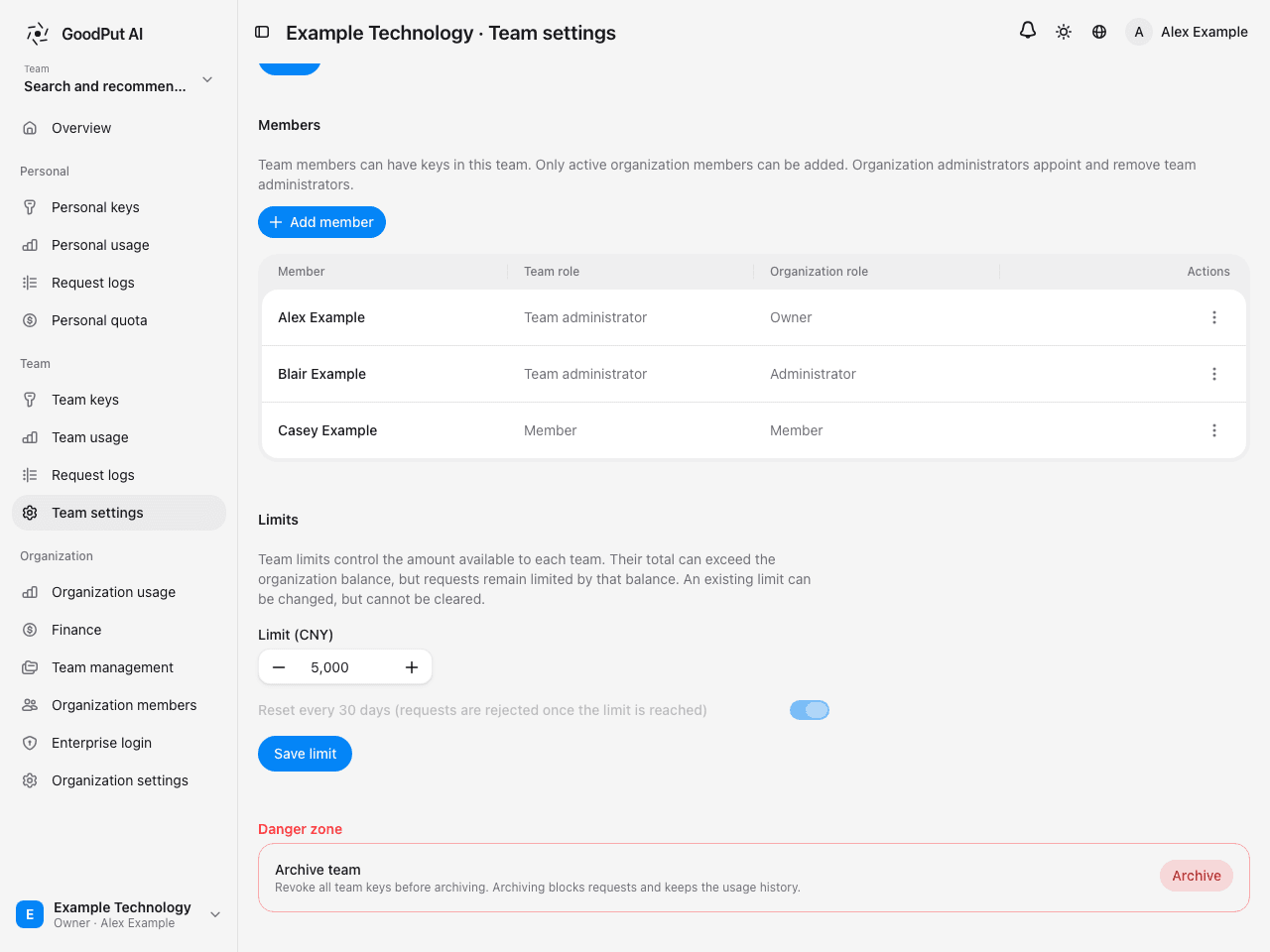
- Members: add only people who are already organization members. Team roles are Team Administrator and Member.
- Caps: set a team spending cap, optionally resetting monthly. The sum of team caps may exceed the organization’s balance; actual requests still depend on that balance. Existing caps can currently be changed but not cleared.
- Archive: revoke all team keys first. Archiving blocks requests but retains usage history. The default team cannot be archived.
Member management
Invite members
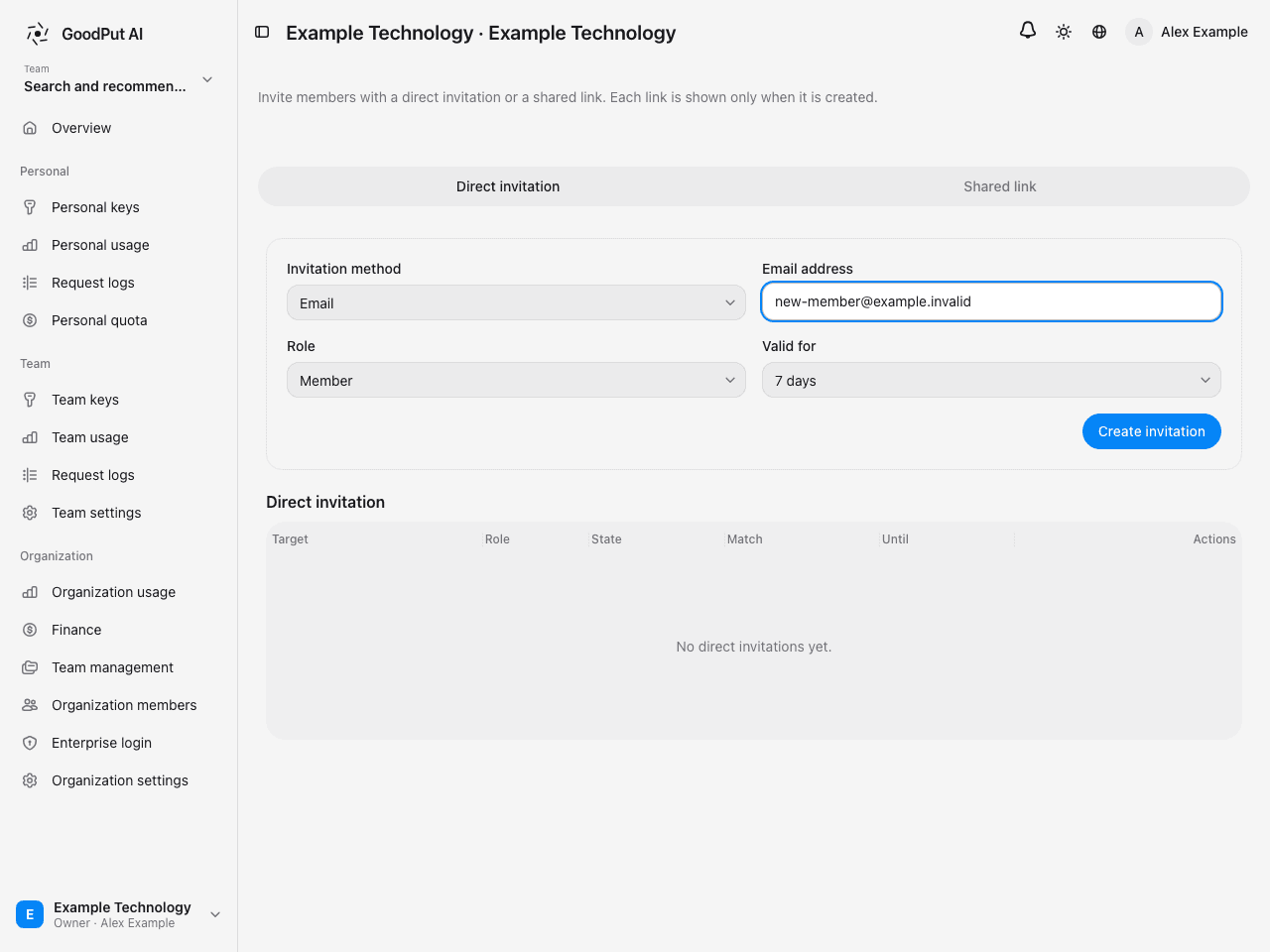
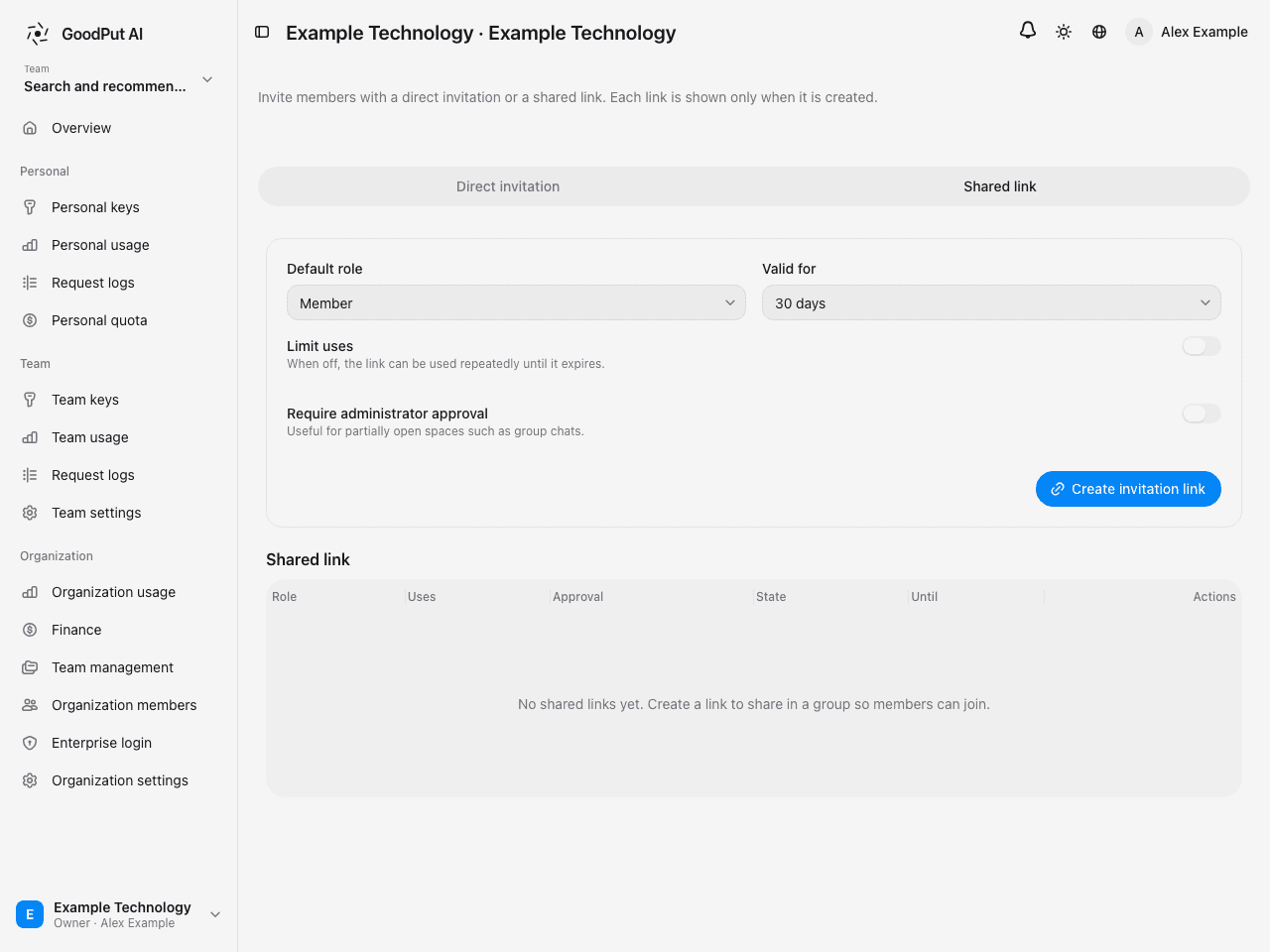
Select Invite Members on Overview. Two invitation methods are available:
Direct invitation: specify an email address or phone number, role, and expiry.
Shared link: generate a link for a group, optionally limiting uses or requiring administrator approval.
The link is shown only once, when generated; the server stores only its hash. Copy and save it immediately. If lost, generate a new one.
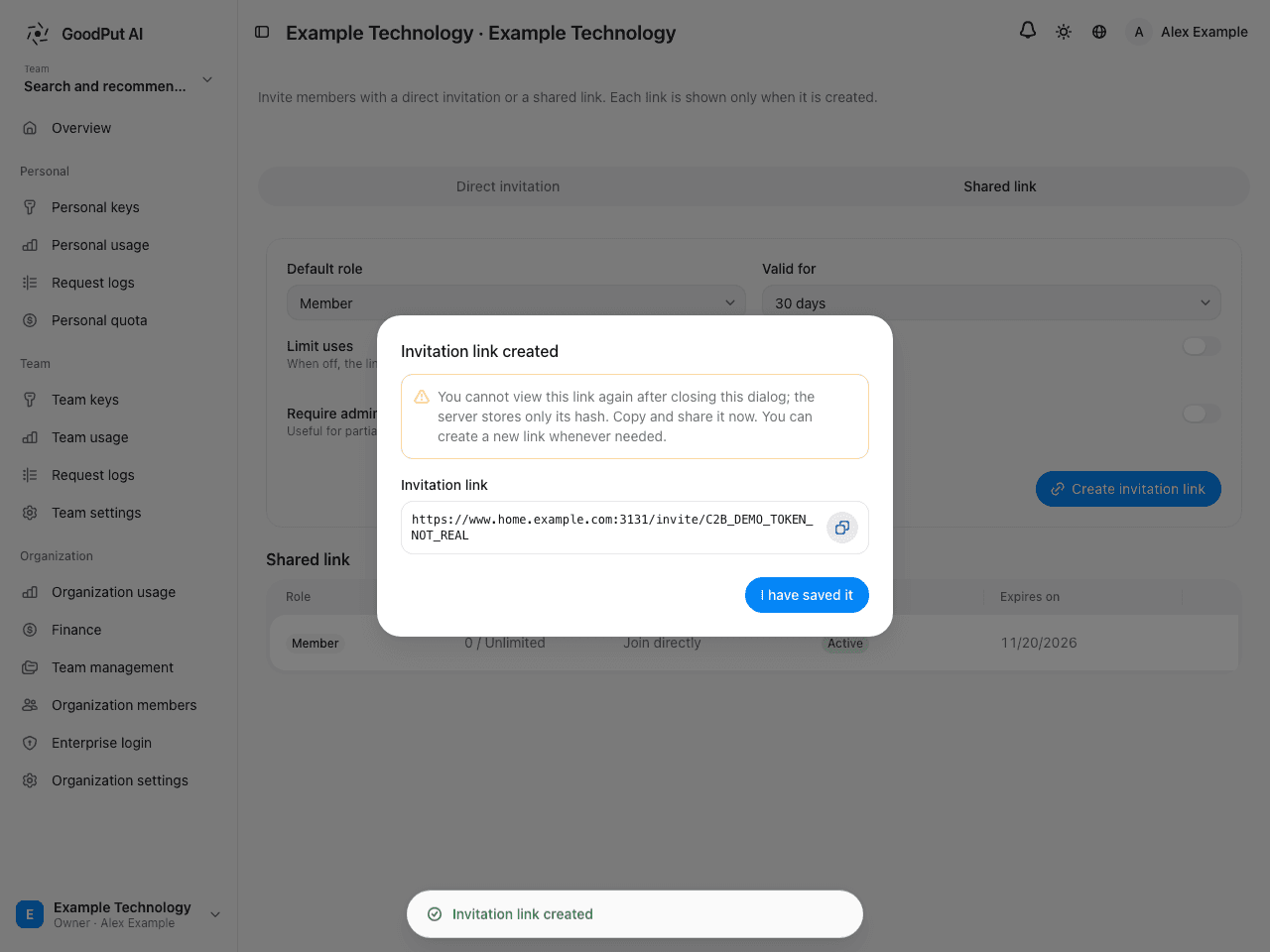
Both methods show invitation status in their lists: Active / Accepted / Expired / Exhausted / Revoked. Active invitations can be revoked from the row’s action menu.
Roles and approval
An organization has three roles:
| Role | Permissions |
|---|---|
| Owner | All organization permissions, including enterprise sign-in configuration and appointing or removing administrators |
| Administrator | Manage members, teams, budgets, policies, recharges, and bills |
| Member | Use and manage their own keys in authorized teams; view their own usage and logs |
On Organization Members, change roles, process pending join requests, and remove members.
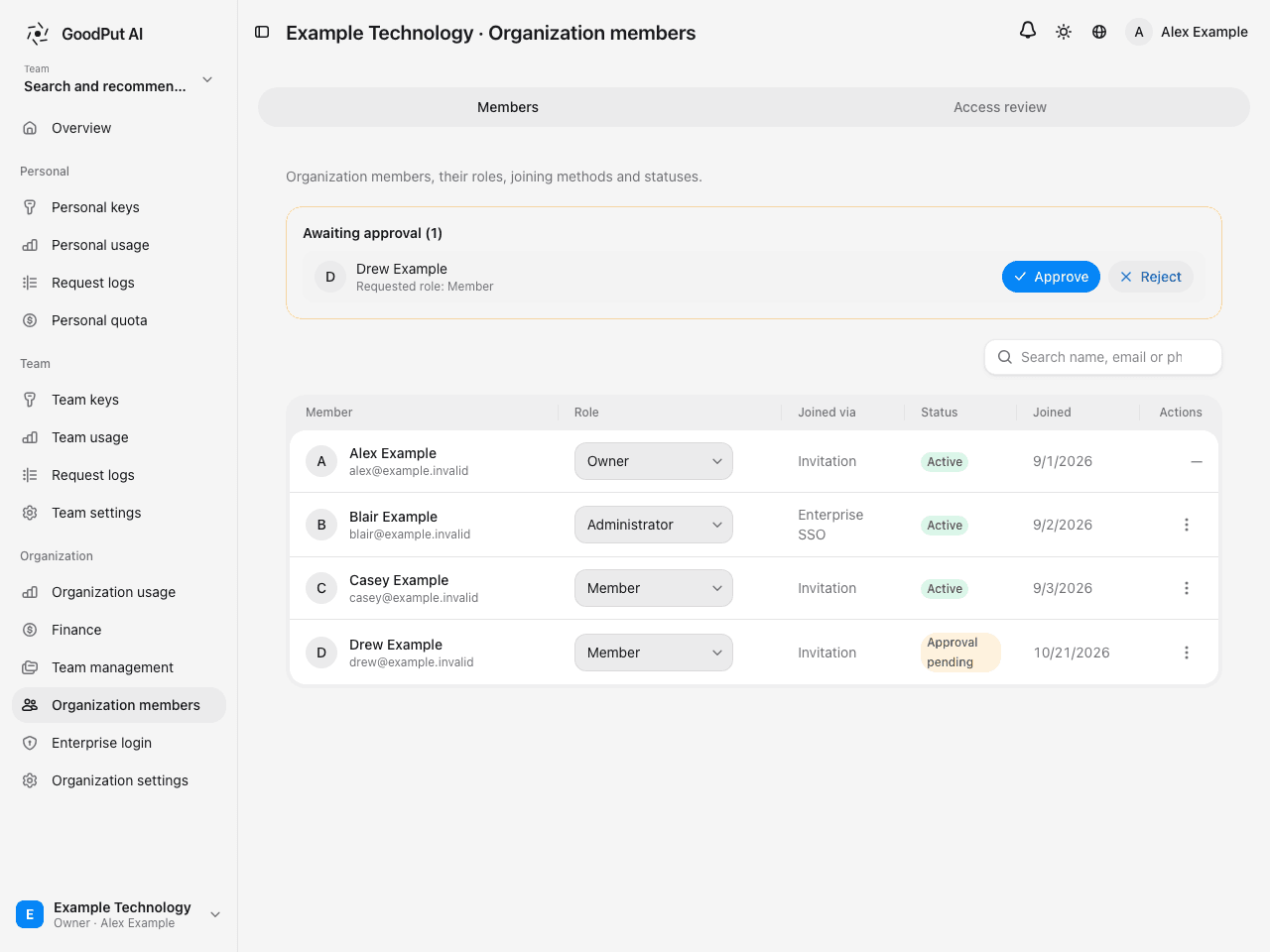
- With administrator approval enabled, people joining through a link or enterprise sign-in remain Pending Approval until approved.
- Removing a member requires typing their name to confirm. Their team keys in this organization are revoked and team access ends immediately. Their personal account and assets are unaffected. Removal cannot be undone.
- Ordinary members cannot see other members’ email addresses or phone numbers.
- The role selector includes Owner, but self-service ownership transfer is not currently supported. Selecting it reports an update failure; contact support if needed.
Review access regularly
The second tab on Organization Members is Access Review. It shows roles, join methods, last activity, and recent usage. Members who have not signed in through the enterprise entry for more than 90 days, or have never done so, are marked for review. Decide whether to retain or remove them.
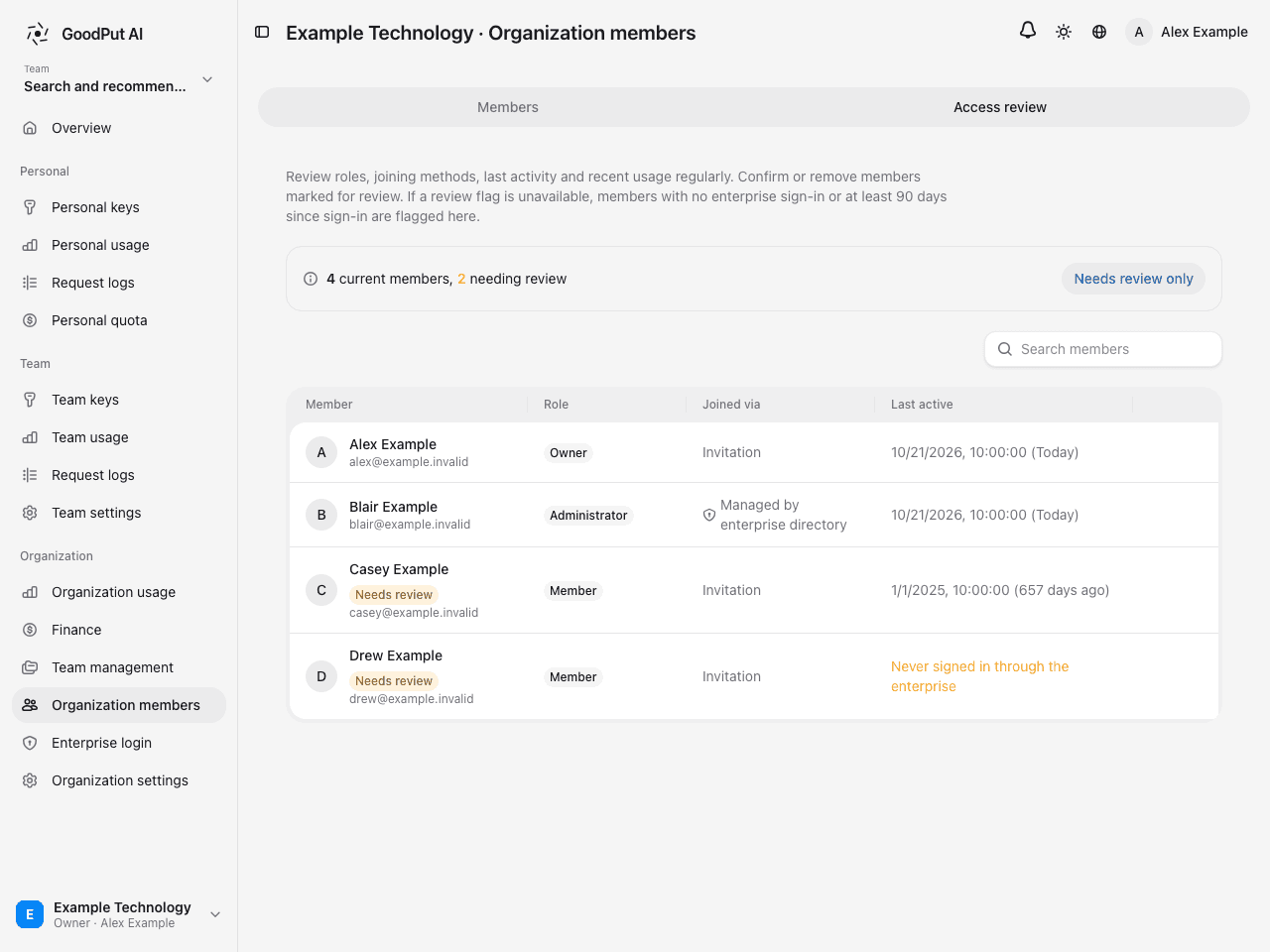
Enterprise-sign-in members are also managed by the enterprise directory. A person still present there may rejoin on their next sign-in. Complete removal also requires handling their departure in the enterprise identity system.
Key management
Organization keys belong to members and use the organization balance. Administrators can create, block, or revoke keys for members on Team Keys. Members see their own on Personal Keys.
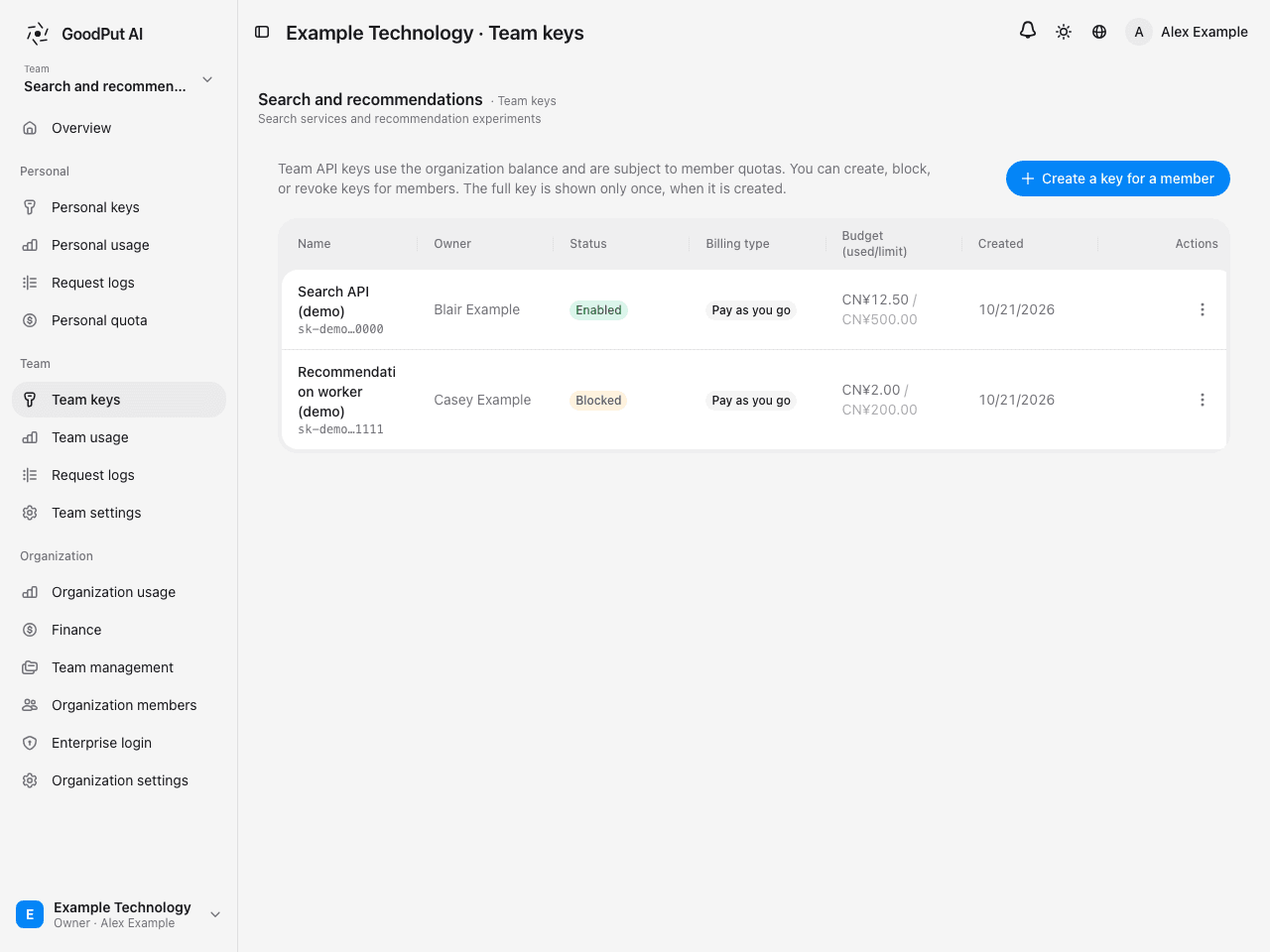
- Plaintext is shown only once at creation; the server stores only its hash. Lost keys must be revoked and recreated or rotated.
- At creation, restrict callable models and optionally set a per-key budget.
- Blocking is temporary and immediately rejects requests; it can be reversed. Revocation is irreversible.
- Keys cannot be created while organization services are “Initializing”, usually for a few seconds.
Configure budgets
Three budget levels all remain subject to the organization balance:
| Level | Where | Scope |
|---|---|---|
| Default member budget | Organization Settings → Member Key Policy | A member’s total budget across all their team keys in the organization |
| Team cap | Team Settings → Limits | The whole team, optionally reset monthly |
| Key budget | Key creation | One key |
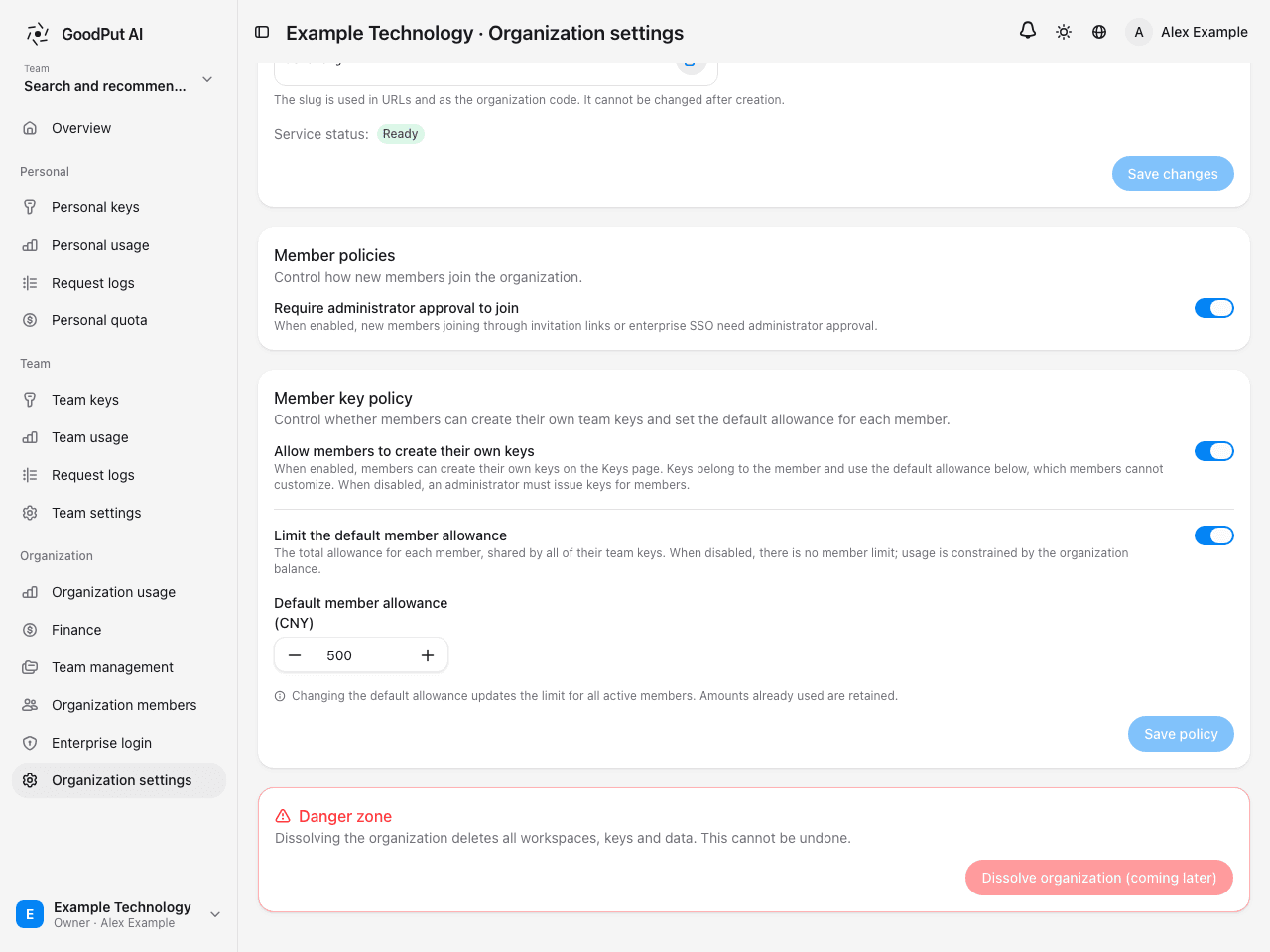
Member Key Policy also has Allow Members to Create Their Own Keys. When enabled, ordinary members can create keys belonging to themselves, using the default budget without customizing it. When disabled, administrators must issue keys for them.
Changing the default budget updates existing members’ caps while preserving the amount already used.
On Personal Quota, members can see the source and remaining budget. An individual budget shows its cap, usage, and remainder. Without an individual budget, a configured team cap is inherited; without either cap, requests follow the organization balance.
Other organization settings
- Basic information: change the organization name. The slug cannot change after creation.
- Member policy: Require Administrator Approval for Joining makes new members from invitation links or enterprise sign-in wait for approval.
- Enterprise sign-in: connect DingTalk / Feishu / WeCom / Slack using a five-step wizard. Enable it only after testing succeeds. The sidebar entry is Enterprise Login; only the owner can write its configuration.
FAQ
Why is there no Invitations menu in the sidebar?
Use Invite Members on Overview, or visit /org/{orgSlug}/invitations directly.
Why is the team switcher missing?
It is hidden when there is only one team. Create a second team to display it, or open a team from Team Management.
Can members create their own keys?
It depends on Allow Members to Create Their Own Keys in Organization Settings. If disabled, an administrator must create them on Team Keys.
What if the sum of team caps exceeds the organization balance?
This is allowed. Caps are only each team’s maximum; every request uses the organization balance. When that balance runs out, all teams stop together.
Must each member verify their identity?
No. Team keys are covered by the organization’s enterprise verification. See enterprise verification.
Are request records retained after removing a member?
Yes. Usage and billing history remain; only keys and access permissions are revoked.